
FITCAMX
Viidure-pubAuto & Vehicles
3.298.00 Reviews
- Version
- v1.0.60.260702
- Installs
- 100.00K
- Age Rating
- Everyone
Screenshots
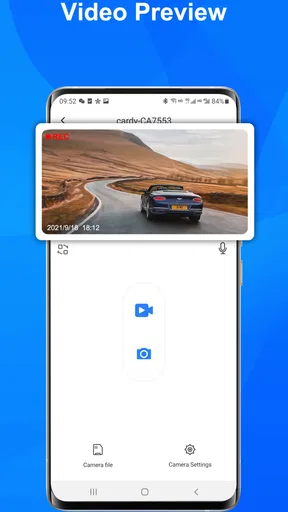
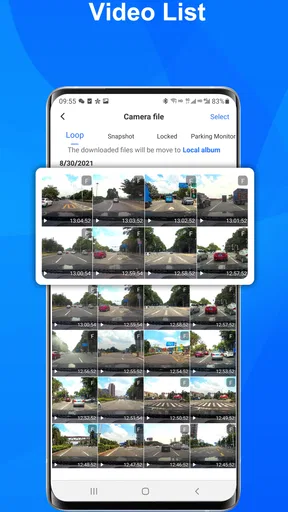
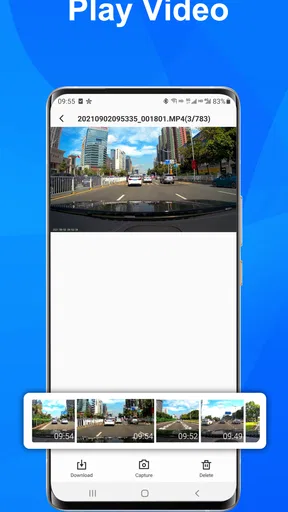
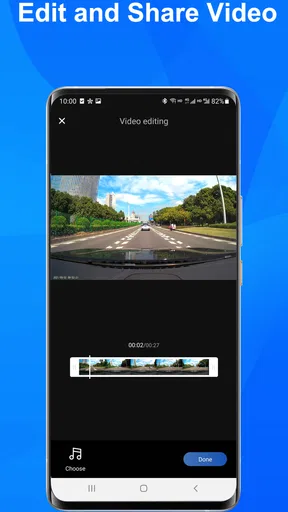
Our Review of FITCAMX
 Analysis by Appyee
When I first approached FITCAMX, I treated it less like a general driving app and more like a companion for a specific piece of hardware. That distinction matters. This is a free Auto & Vehicles app from Viidure-pub, customized for FITCAMX dash cams rather than designed to replace a dash cam or act as a complete driving assistant on its own. If you already own a compatible camera, the app is meant to make the camera easier to use from your phone. If you do not, there is little reason to install it just to browse around.
My overall impression is practical but dependent on the camera setup. The app gives a phone-based route into the dash cam experience, which is useful when I want to check footage, manage the camera, or avoid handling the camera itself. At the same time, the average rating sits at 3.2 from roughly four hundred ratings, so I would not describe it as universally smooth. The experience can depend heavily on the phone, the camera connection, and how clearly the first setup is completed.
It has passed one hundred thousand installs, is rated for Everyone, and runs on Android six or later. The current release is v1.0.60.260702. Those details make it accessible to many Android users, but compatibility on paper should not be confused with a guaranteed identical experience on every device. For a first-time user, the important question is simple: do you have a FITCAMX dash cam and a clear reason to access it from your phone?
What the app is really for
The name can make the app sound broader than it is. In practice, I would think of FITCAMX as a control and viewing companion for the brand’s dash cams. It belongs beside the camera, not instead of it. That means its value appears during specific moments: setting up the camera, checking whether it is working, reviewing a recording after a journey, or preparing footage to deal with an incident.
This focus is also its main strength. A general video app would not know how to interact with the camera, while a broad driving utility might offer maps, fuel tools, or vehicle reminders without helping with recorded footage. FITCAMX has a narrower job, and a narrow job can be useful when it matches your equipment.
I would recommend it most to someone who has just installed a compatible FITCAMX dash cam and wants a phone-based way to confirm that the camera is ready. It may also suit a driver who prefers checking recordings on a larger phone screen instead of using buttons or removing storage media whenever a clip needs attention. The app makes the camera feel less isolated inside the vehicle.
On the other hand, I would skip it if you are looking for navigation, live traffic, maintenance reminders, insurance tools, or a general driving recorder. It is not the right alternative to those categories. It is also not a sensible download for someone without compatible FITCAMX hardware, because the app’s purpose is tied to that camera relationship.
What to expect before installing
The first useful expectation is that installation is only the beginning. A dash cam companion app usually becomes meaningful after the camera and phone can communicate, so I would not judge it by the opening screen alone. The real test is whether I can reach the camera, see the relevant footage, and complete a small task without guessing what each screen is for.
I also recommend treating the app as a support tool for driving evidence, not as the only copy of important footage. If a recording matters, I would review it promptly and keep an additional copy somewhere safe. A phone connection is convenient, but convenience should not replace a careful backup habit when the video may be needed later.
Because the app is free, there is no purchase decision complicating the first test. That makes it easy to try with the camera already installed. Still, free does not mean frictionless. The most important preparation is having the camera powered, the vehicle stationary, and enough time to work through the connection without trying to do it while driving.
Getting through the first setup
I would begin this section by making the first connection as calm and controlled as possible: park, power the dash cam, and keep the phone nearby. The useful detail is to treat setup as a check of the whole phone-to-camera path, not just an app-opening exercise. Once that foundation is clear, the next section turns to the first task that shows whether the connection is genuinely useful.
Start with the camera, not the app
My first setup advice is to begin with the dash cam physically ready. The vehicle should be parked, the camera should have power, and the phone should be close enough for a stable connection. I would avoid attempting the initial pairing during a journey, because the setup requires attention and a moving vehicle is the worst place to troubleshoot a connection.
After installing the app, open it with the camera available and follow the connection path presented on screen. The exact labels may vary with the phone and camera state, so I would focus on the purpose of each step rather than rushing through it. When the app asks me to connect, I would check that I am connecting to the FITCAMX camera rather than accidentally remaining on an unrelated network or device.
A useful habit is to keep the phone unlocked during the first connection attempt. Some phones become aggressive about background connections, and switching repeatedly between screens can interrupt a process that is still completing. I would also keep other demanding wireless tasks to a minimum until the app has successfully reached the camera.
Give the first connection a clean test
Once the app appears connected, I would not immediately change every available setting. Instead, I would perform a simple check: confirm that the camera is visible to the app and try to reach a recent recording or camera view if that option is presented. This creates a clear baseline. If the basic connection works before any customization, later problems are easier to trace.
This is one of the less obvious lessons with a camera companion app: the first successful connection is more valuable than a perfectly customized setup. I want to know that the phone and camera can communicate before I spend time adjusting preferences. If something fails afterward, I can separate a connection problem from a setting problem.
I would also leave the camera in its normal powered state for a short check rather than assuming that a single screen proves everything is working. A camera can appear connected while the practical workflow still needs testing. The meaningful result is being able to access the material I expect and understand how to return to that screen later.
Make permissions and interruptions less confusing
Phone manufacturers handle wireless access, local connections, storage, and battery behavior differently. If the app asks for access that seems related to connecting or handling recordings, I would read the wording instead of denying everything automatically. At the same time, I would not approve an unrelated request merely because I want to get past the setup screen.
If the app loses contact, my first response would be simple: park the vehicle, return to the app, and check the camera’s power and phone connection before reinstalling anything. Reinstalling too early can erase a useful clue. I would also avoid repeatedly tapping connect, because several overlapping attempts can make it harder to tell whether the camera or the phone is responding.
For a first-time user, the reassuring part is that setup does not need to be treated as a one-shot test. If the first attempt fails, I would close unnecessary apps, bring the phone nearer to the camera, confirm that the camera is still powered, and try again calmly. The goal is a clean connection, not speed.
The first meaningful success
Rather than exploring every control at once, I would aim for one practical result: reach a recent recording and understand how I would preserve it if it mattered. That test gives me a better sense of the app’s day-to-day value than a successful connection screen alone. From there, it is worth looking at the small misunderstandings that can make an otherwise workable camera link feel unreliable.
Use a short, realistic workflow
The first success I would aim for is not changing a setting. I would connect the app to the camera, locate a recent recording, and make sure I understand how to review it. That sequence proves more than an attractive home screen: it shows that the camera is reachable and that the app can serve its main purpose.
Imagine returning home after a routine drive and noticing a confusing moment at an intersection. Instead of removing the camera or waiting until later, I would park, open the app, connect to the dash cam, and look for the relevant clip while the journey is still fresh in my mind. If the recording is available, I can identify the moment more quickly and decide whether it needs to be saved or shared through the phone’s normal tools.
This scenario also reveals an important trade-off. Wireless access is convenient, but video files can take patience to handle, especially when a clip is large or the connection is not ideal. I would avoid standing in a busy roadside location trying to complete a lengthy transfer. If the footage is important, I would move somewhere safe, allow the process to finish, and verify the copy before relying on it.
Build a repeatable footage routine
After the first successful review, I would create a small routine for important journeys. When something unusual happens, I would note the approximate time and location mentally or in a note, then review the corresponding footage as soon as it is safe. That is more efficient than scrolling through everything without a starting point.
A second useful habit is to separate viewing from preservation. First, I would find the clip and confirm that it shows the event clearly. Then I would save or copy it using the available phone workflow and check that the resulting file can be opened outside the app. This avoids the common mistake of assuming that seeing a clip inside the camera connection automatically means a permanent phone copy exists.
I would not use the app while the vehicle is moving. Even if the camera is recording normally, interacting with the phone creates an avoidable distraction. The best workflow is to let the dash cam do its job during the drive and use FITCAMX only after parking.
Use the app as a confirmation tool
Another practical use is checking the camera after installation or after changing the vehicle’s power arrangement. I would use the app to confirm that the camera is accessible and that the expected recordings are appearing, rather than discovering a problem only after an incident.
This is especially helpful after a long period without checking the system. A quick parked inspection can reveal whether the camera is still communicating with the phone and whether the recording workflow feels familiar. The app cannot remove the need to inspect the camera itself, but it gives me a convenient second point of contact.
Common confusion and where the friction appears
The main source of frustration is often not one dramatic failure but uncertainty about which part of the setup needs attention: the camera’s power, the phone’s connection, or the footage workflow. I would change one thing at a time and note where the process stops, rather than repeating the same taps or reinstalling immediately. With those friction points in mind, the final section considers how to keep the app useful without turning it into another routine burden.
A connection screen is not the same as a completed workflow
One frequent misunderstanding is treating a connected status as the final result. For me, connection is only successful when I can perform the action I actually downloaded the app for. If I only see that the phone recognizes the camera but cannot reach footage, I would consider the setup incomplete and work backward through power, wireless connection, and app access.
The reverse can also happen: a user may assume the app is broken because the camera is not immediately visible, when the camera is simply not powered in the current vehicle state. A dash cam companion cannot communicate with hardware that is asleep or disconnected. Checking the physical setup before blaming the app saves time.
Phone storage and footage handling need attention
Video review is different from checking a small text record. Clips can occupy meaningful space, and moving them to a phone may not be instantaneous. I would keep enough room available before trying to preserve an important recording, then check the phone’s file or gallery area afterward rather than assuming the transfer finished.
I would also avoid deleting a camera recording immediately after opening it on the phone. First I would verify the phone copy, play it from start to finish if the event matters, and only then decide what to do with the original. This two-stage approach is a small but important safeguard.
Do not confuse the app with a full dash-cam management system
Compared with a broad vehicle app, FITCAMX is more focused and less useful outside its hardware ecosystem. A navigation app is better for directions. A general cloud video service may be better for remote access across several devices. A phone-only driving recorder may be easier for someone who does not own a dedicated dash cam. FITCAMX makes the most sense when the camera is already the center of the workflow.
That focus can still feel limiting if I expect every camera-related task to happen inside one polished interface. The practical experience may involve the app for access and the phone’s own tools for storing, opening, or sharing a clip. I would see that as a normal division of labor, but first-time users should know not to expect the app to replace the entire phone file system.
Who should choose another option
I would choose another solution if my priority were a camera-independent experience. Someone comparing several dash-cam brands may prefer a general recorder or a platform built around cloud accounts. A driver who mainly wants navigation and hands-free assistance should look elsewhere. FITCAMX is a targeted choice, and targeted tools are not automatically the best general tools.
I would also be cautious about relying on it as the only way to access evidence. If a phone connection is inconvenient in my daily routine, I would establish another safe method for preserving important recordings. The app is useful as a bridge to the camera, but my confidence should come from a repeatable backup process rather than from the existence of the app alone.
How I would use it after the first day
After the first day, I would keep the routine deliberately modest: know how to reach the camera, review a clip when there is a reason, and confirm any important copy before relying on it. That approach makes the app a practical companion instead of a place to browse recordings aimlessly. The remaining question is how much confidence I would place in it over time, and where I would keep a backup plan.
Keep the workflow simple
After setup, I would resist changing settings without a reason. A stable camera connection and a familiar review path are more valuable than constantly experimenting. I would learn where recent footage appears, how to return to the camera connection, and how to move a meaningful clip into a location I can access later.
If I regularly drive for work, I would make the review process part of my end-of-day routine only when an event requires it, rather than browsing recordings unnecessarily. That keeps the app from becoming another source of digital clutter. For occasional drivers, a quick check after installation and after unusual journeys may be enough.
Use the rating as a reason to test, not a verdict
The app’s 3.2 average from around four hundred ratings tells me that the experience deserves a personal trial rather than blind confidence or immediate dismissal. Ratings for hardware companions often reflect combinations of phone models, camera states, connection conditions, and expectations. I would use the app with my own camera and phone, then judge whether the central workflow is reliable enough for me.
The free price lowers the barrier to that test, while the Everyone age rating makes it broadly accessible. Still, the app’s usefulness remains conditional on owning the matching dash cam. A high install count does not change that basic requirement, and neither does the fact that it has been available since September 2021.
What to do if the experience remains awkward
If I could not complete the basic camera connection after checking power, proximity, phone settings, and the app’s access requests, I would stop repeating the same steps. I would record exactly where the process fails, including whether the camera is visible and whether footage can be reached, then consult the camera’s support material or the developer’s support channel. Precise observations are more useful than simply reporting that the app does not work.
I would also test once more under controlled conditions: the vehicle parked, the camera powered, the phone nearby, and other wireless activity reduced. If the workflow still feels unreliable, I would not make it the sole method for handling important recordings. That is the honest boundary of my recommendation.
My recommendation for a first-time FITCAMX owner
I see FITCAMX as a focused companion that can make a compatible dash cam easier to check and use from an Android phone. Its best moment is practical: after parking, I can connect to the camera, find a recording, review it, and preserve it through a clear routine. It is not a general driving toolkit, and it should not be judged as one.
My advice is to install it with the camera already powered, complete the first connection while stationary, and define success as reaching a real recording rather than merely opening the app. Then test one small footage workflow before depending on it. Verify important copies, keep the phone out of reach while driving, and remember that the app works best when the FITCAMX camera is already central to your setup.
For the right owner, that narrow purpose is enough to make the app worthwhile. For someone without the hardware, or for anyone wanting navigation, cloud-first video management, or a universal dash-cam solution, a different category of app will be a better fit. I would recommend trying FITCAMX, but I would recommend it as a camera companion—not as a complete answer to every problem connected with driving.
Verdict
Strengths of FITCAMX
- Discreet, factory-style design keeps the camera nearly invisible.
- Supports loop recording, so older footage is automatically replaced.
- Parking monitoring can help capture incidents while the car is unattended.
- Wide-angle coverage records more of the road and surrounding traffic.
- Dedicated app makes it easy to view, download, and manage recorded clips.
Limitations of FITCAMX
- Installation can be difficult without experience with vehicle trim and wiring.
- Some features may require an optional hardwire kit or additional accessories.
- Video quality can vary noticeably in low light or challenging weather.
- The app experience may feel less polished than those from major dashcam brands.
- Compatibility depends on the exact vehicle model and available FITCAMX version.
Similar Picks in This Category
View All
Android Auto
Google LLC4.1

maxim — order a taxi & food
PT. SITO4.7

Штрафы ГИБДД: проверка с фото
Pays LLC – Штрафы ГИБДД4.7

Номерограм – проверка авто
Авто Ассист4.8

Дром Авто
Дром4.9

Frequently Asked Questions
What is FITCAMX, and what does it do?
FITCAMX is a vehicle dash camera designed to provide discreet video recording while you drive. It is typically made to replace or integrate with the car’s existing rearview-mirror cover or other factory trim, creating a more original-looking installation than a traditional windshield-mounted camera. Depending on the model, it can record driving footage, save clips to a memory card, and let you review or download videos through its companion mobile app.
Is the FITCAMX app compatible with Android and iPhone?
FITCAMX generally works with both Android phones and iPhones through a dedicated companion application, but compatibility can depend on the specific camera model and app version. Before downloading, check that your phone meets the current operating-system requirements. The app usually connects directly to the camera’s built-in Wi-Fi, so your phone may temporarily switch away from its normal internet connection while viewing or transferring recordings.
How do I connect my phone to a FITCAMX camera?
After installing the FITCAMX app, turn on the camera and open your phone’s Wi-Fi settings. Select the network broadcast by the camera and enter the password provided in the manual or setup instructions. Then return to the app to preview recordings, adjust settings, or download files. Because the connection is usually local Wi-Fi rather than cloud-based, you may need to reconnect manually whenever you leave the vehicle or close the app.
Does FITCAMX record continuously, and where are videos stored?
FITCAMX cameras commonly support continuous loop recording, which means the oldest unlocked files are automatically overwritten when the memory card becomes full. Important clips can usually be protected from deletion through the camera or app. Recordings are normally stored on a compatible microSD card, while downloaded videos can be saved to your phone. Storage capacity, supported card specifications, and recording resolution vary by model, so checking the product manual is recommended.
What should I know before installing FITCAMX in my car?
FITCAMX is designed for a cleaner, more integrated installation, but it is not universally compatible with every vehicle. You should confirm that the exact camera version matches your car’s make, model, year, and mirror or trim design. Installation may involve removing factory panels and connecting to the vehicle’s power supply, so care is needed to avoid damaging clips, wiring, or airbags. Professional installation is advisable if you are not comfortable working with automotive trim.
